
Hoppa till innehåll
  • Drift
  • Webmail
  • Logga in
Svenskadomäner
  • WEBBHOTELL
    • WEBBHOTELL
    • DNS KONTO
  • DOMÄNER
    • DOMÄNREGISTERING
    • DOMÄNFLYTT
    • TOPPDOMÄNER
  • HEMSIDA
    • Börja här – Metoder för att bygga hemsida
    • HEMSIDA – BYGGD AV EXPERTER
    • WEBBSHOP – BYGGD AV EXPERTER
    • Underhåll WordPress-hemsida
    • WEEBLY HEMSIDABYGGARE
    • SITEPRO HEMSIDABYGGARE
    • 1-KLICKINSTALLATION
  • E-POST
  • MICROSOFT 365
  • SSL
  • SUPPORT
    • KUNDSKAPSCENTER
    • BLOGG
  • KONTAKTA
    • Kontakta
    • Om Oss

Användarvillkor

3
  • Svenska Domäner – Avtalsvillkor
  • Svenska Domäners – Integritetspolicy
  • MISSBRUK

Databas

1
  • Vilken ’host’ ska jag använda vid anslutning till min databas?

DNS

54
  • How do I cancel a service/domain?
  • Hur säger jag upp en domän / tjänst?
  • How to navigate to service’s main page?
  • Hur navigerar jag till tilläggstjänstens huvudsida?
  • How can I view/edit nameservers for domain?
  • Hur kan jag visa/ändra namnservrar för min domän?
  • How can I disable automatic renewal of my subscription?
  • Hur inaktiverar jag automatisk förnyelse av mitt abonnemang?
  • How to manage the DNS zone for my domain?
  • Hur hanterar jag DNS zonen för min domän?
  • What happens with my domain/service when I cancel my subscription?
  • Vad händer med min domän/tjänst när jag säger upp mitt abonnemang?
  • Hur åtgärdar jag DNS problem?
  • How to resolve issue with DNS?
  • Kan jag hantera DNS för min domän?
  • Can I manage DNS for my domain?
  • Vad är ett abonnemang av en domän/tilläggstjänst?
  • What is domain/service subscription?
  • Vad händer om jag inte betalar för mitt abonnemang?
  • What happens if I don’t pay my subscription?
  • Vad är ett Domänkonto?
  • What is Domain Account?
  • Vad är en multidomäntjänst?
  • What is multidomain service?
  • Vad händer efter min beställning?
  • What happens after my order?
  • Hur uppgraderar jag min tilläggstjänst?
  • How to upgrade my service?
  • Hur importerar jag DNS-data/vidarebefordringar?
  • How to import DNS/forwarders data?
  • Vad händer när systemet inaktiverar mitt abonnemang?
  • What happens when system inactivates my subscription?
  • Hur exporterar jag DNS-data/vidarebefordringar?
  • How to export DNS/forwarders data?
  • Hur ångrar jag en uppsägning?
  • How can I revoke my cancellation request?
  • Hur återaktiverar jag mitt inaktiverade abonnemang?
  • How can I reactivate my inactivated subscription?
  • Hur återställer jag mitt uppsagda abonnemang?
  • How can I redeem my cancelled subscription?
  • Varför får jag varningsmeddelanden gällande inaktivering av mitt abonnemang?
  • Why am I receiving notifications about inactivation of my subscription?*
  • Vad är DNS?
  • What is DNS?
  • Vad är DNSSEC?
  • What is DNSSEC?
  • Hur lägger jag till DNSSEC DS-post för min domän?
  • How to add DNSSEC DS record?
  • Hur inaktiverar jag DNSSEC för min domän?
  • How to deactivate DNSSEC for your domain?
  • Hur aktiverar jag DNSSEC för min domän?
  • How to activate DNSSEC for your domain?
  • Hur ändrar man säkrast DNS med DNSSEC aktiverat?
  • How to safely change DNS with DNSSEC activated?
View Categories
  • Home
  • Kunskapscenter
  • Weebly Site builder
  • How to add a color gradient background with Weebly?

How to add a color gradient background with Weebly?

1 min read

Adding a gradient background is an easy way to make your content stand out. Just like solid color backgrounds, gradients can be added to individual sections on a page or to a single section to fill the whole background area.

Add a gradient #

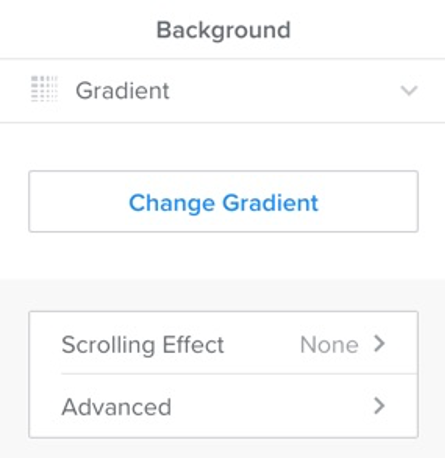
Click on the section you want to add a gradient to, and click Edit Background. Select Gradient, and then click on Change Gradient to add your colors and adjust the settings.
Adjust the color of the gradient #

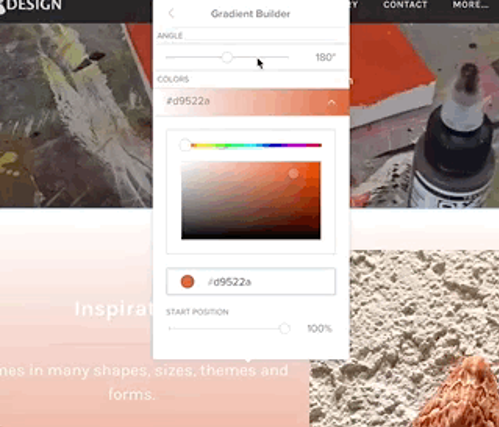
You can change the color by dragging the slider across the spectrum bar at the top and then fine tune the lightness and saturation of the color by dragging the circle around the color swatch field below. You can also enter a hex code if you know exactly what color you want. Once you’ve chosen a color, drag the angle and start position sliders to adjust the angle and intensity of the gradient.
Pick a second color for the gradient #

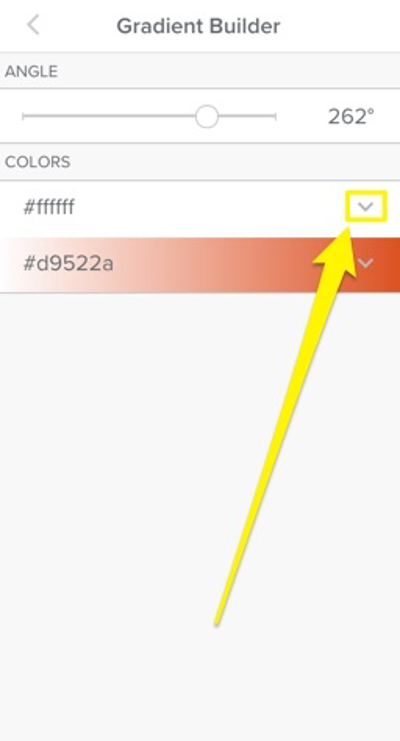
When you’re done, click the arrow on your first color to go back and pick a second color using the same process. You can change the start position for the second color individually, but the angle setting applies to the entire gradient.
What are your Feelings

  • Happy
  • Normal
  • Sad
Share This Article :
  • Facebook
  • X
  • LinkedIn
  • Pinterest
Table of Contents
  • Add a gradient
  • Adjust the color of the gradient
  • Pick a second color for the gradient
Trygga och säkra betalningar
Visa logotyp Stäng-ikon Nets logotyp
Alla priser är SEK ex. moms
Facebook

.se-agent. .nu-agent

Företag

  • Om oss
  • Jobb
  • Kontakta
  • Integritetspolicy
  • Avtalsvillkor
  • Personuppgifts­biträdesavtal

Support

  • Driftinformation
  • Kundcenter
  • Kunskapsbas
  • Skicka supportärende

Tjänster

  • Domänregistrering
  • Domänflytt
  • Toppdomäner
  • Webbhotell
  • E-post
  • SSL-certifikat
  • Microsoft 365
  • Kampanjer
  • 1-klicks-installation


  • 3 sätt – bygga hemsida
  • Hemsida
  • Webbshop
  • Underhåll WordPress-hemsida
  • Weebly hemsidesbyggare
  • SitePro Hemsidebyggare
  • WordPress
© 2026 Svenskadomäner • Byggt med GeneratePress