
Hoppa till innehåll
  • Drift
  • Webmail
  • Logga in
Svenskadomäner
  • WEBBHOTELL
    • WEBBHOTELL
    • DNS KONTO
  • DOMÄNER
    • DOMÄNREGISTERING
    • DOMÄNFLYTT
    • TOPPDOMÄNER
  • HEMSIDA
    • Börja här – Metoder för att bygga hemsida
    • HEMSIDA – BYGGD AV EXPERTER
    • WEBBSHOP – BYGGD AV EXPERTER
    • Underhåll WordPress-hemsida
    • WEEBLY HEMSIDABYGGARE
    • SITEPRO HEMSIDABYGGARE
    • 1-KLICKINSTALLATION
  • E-POST
  • MICROSOFT 365
  • SSL
  • SUPPORT
    • KUNDSKAPSCENTER
    • BLOGG
  • KONTAKTA
    • Kontakta
    • Om Oss

Användarvillkor

3
  • Svenska Domäner – Avtalsvillkor
  • Svenska Domäners – Integritetspolicy
  • MISSBRUK

Databas

1
  • Vilken ’host’ ska jag använda vid anslutning till min databas?

DNS

54
  • How do I cancel a service/domain?
  • Hur säger jag upp en domän / tjänst?
  • How to navigate to service’s main page?
  • Hur navigerar jag till tilläggstjänstens huvudsida?
  • How can I view/edit nameservers for domain?
  • Hur kan jag visa/ändra namnservrar för min domän?
  • How can I disable automatic renewal of my subscription?
  • Hur inaktiverar jag automatisk förnyelse av mitt abonnemang?
  • How to manage the DNS zone for my domain?
  • Hur hanterar jag DNS zonen för min domän?
  • What happens with my domain/service when I cancel my subscription?
  • Vad händer med min domän/tjänst när jag säger upp mitt abonnemang?
  • Hur åtgärdar jag DNS problem?
  • How to resolve issue with DNS?
  • Kan jag hantera DNS för min domän?
  • Can I manage DNS for my domain?
  • Vad är ett abonnemang av en domän/tilläggstjänst?
  • What is domain/service subscription?
  • Vad händer om jag inte betalar för mitt abonnemang?
  • What happens if I don’t pay my subscription?
  • Vad är ett Domänkonto?
  • What is Domain Account?
  • Vad är en multidomäntjänst?
  • What is multidomain service?
  • Vad händer efter min beställning?
  • What happens after my order?
  • Hur uppgraderar jag min tilläggstjänst?
  • How to upgrade my service?
  • Hur importerar jag DNS-data/vidarebefordringar?
  • How to import DNS/forwarders data?
  • Vad händer när systemet inaktiverar mitt abonnemang?
  • What happens when system inactivates my subscription?
  • Hur exporterar jag DNS-data/vidarebefordringar?
  • How to export DNS/forwarders data?
  • Hur ångrar jag en uppsägning?
  • How can I revoke my cancellation request?
  • Hur återaktiverar jag mitt inaktiverade abonnemang?
  • How can I reactivate my inactivated subscription?
  • Hur återställer jag mitt uppsagda abonnemang?
  • How can I redeem my cancelled subscription?
  • Varför får jag varningsmeddelanden gällande inaktivering av mitt abonnemang?
  • Why am I receiving notifications about inactivation of my subscription?*
  • Vad är DNS?
  • What is DNS?
  • Vad är DNSSEC?
  • What is DNSSEC?
  • Hur lägger jag till DNSSEC DS-post för min domän?
  • How to add DNSSEC DS record?
  • Hur inaktiverar jag DNSSEC för min domän?
  • How to deactivate DNSSEC for your domain?
  • Hur aktiverar jag DNSSEC för min domän?
  • How to activate DNSSEC for your domain?
  • Hur ändrar man säkrast DNS med DNSSEC aktiverat?
  • How to safely change DNS with DNSSEC activated?
View Categories
  • Home
  • Kunskapscenter
  • Weebly Site builder
  • How to add links to files and pages with Weebly?

How to add links to files and pages with Weebly?

1 min read

You have the option to upload and link to pretty much any kind of document, allowing a visitor to download it to their computer. You can link to a file by highlighting the text you want to link or clicking on an image and choosing the link option. You can also make images or icons click-able, sending your visitors to a different web page on you site or an external site. 

Make a text click-able #

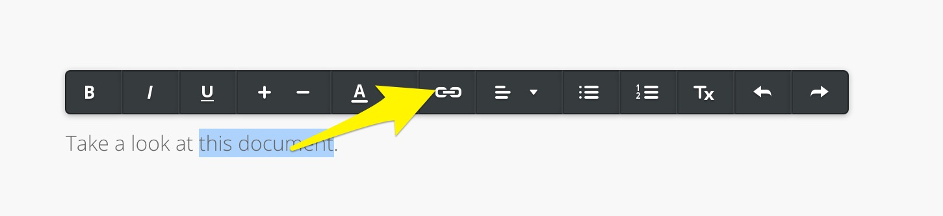
To add a link to a text, select the text and klick on the link-icon, it’ll look like this:
Make an image click-able #

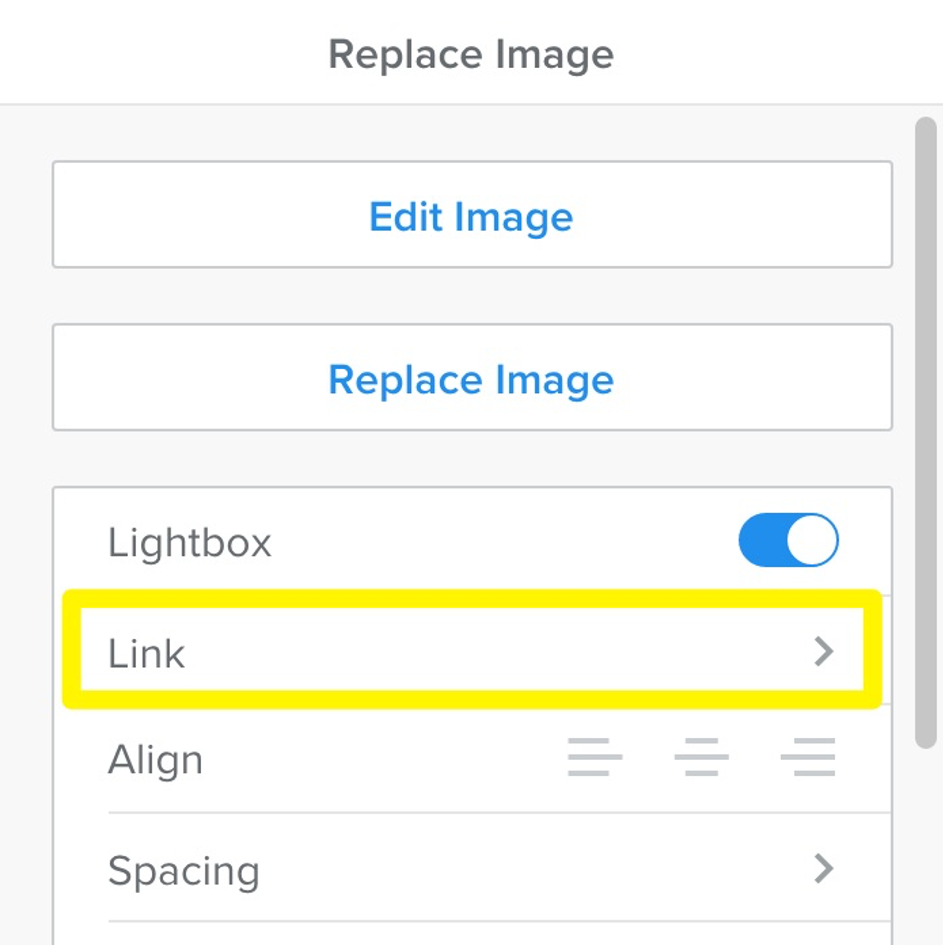
Click on the image and choose Link in the editing options, it’ll look like this:
Define the link #

Both image and text links will open a dialog box like the one shown below.
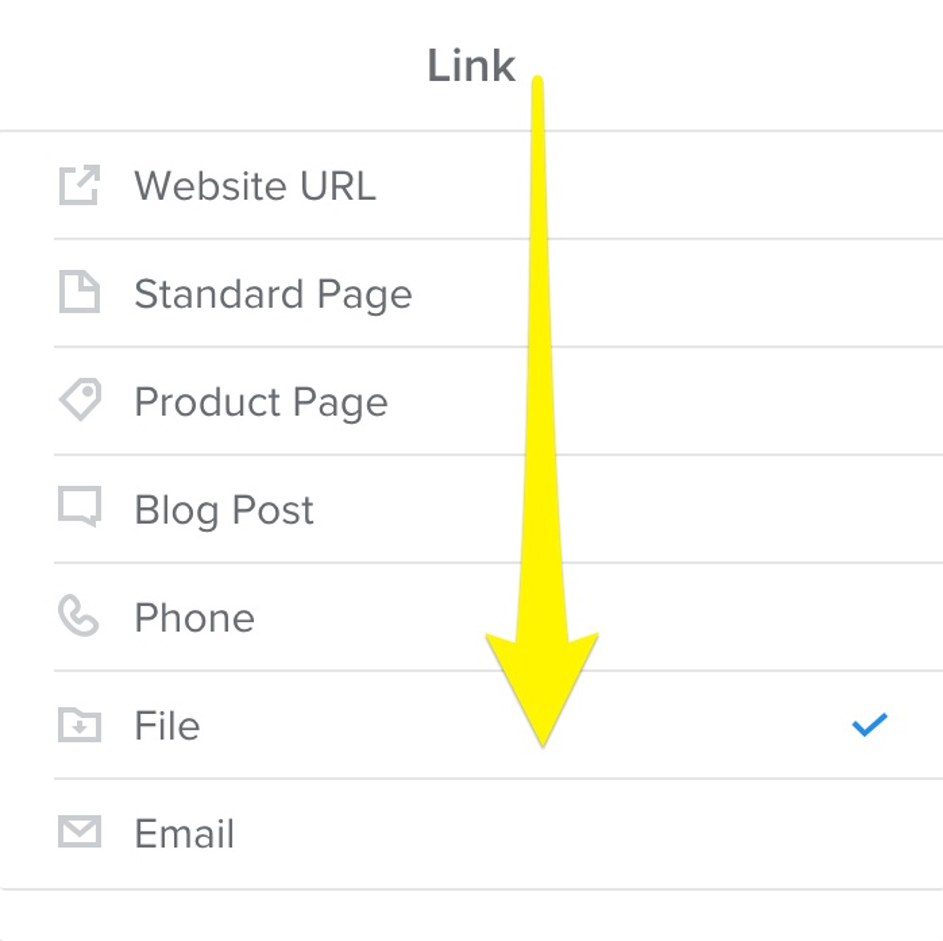
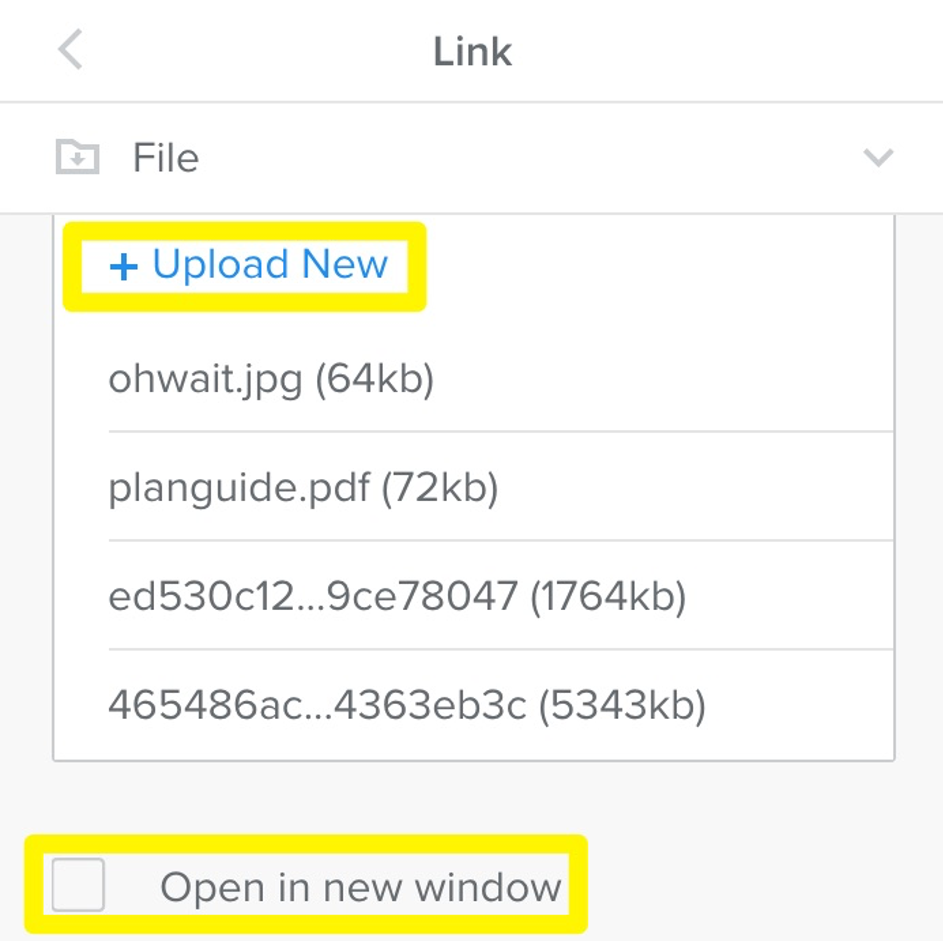
Click on File and select the file you want to link to. You can upload a new file or use one that you’ve uploaded in the past. If you scroll up in the dialog box you’ll see a search field you can use to locate a previously uploaded file by name. Note that this search works only with files you’ve uploaded using the link setting, and won’t be able to search files or media added directly to an element on your site.
Define how the link opens #

You can choose to have your linked file open in a new window, but keep in mind that not all file types can be opened in a browser. If the visitor’s browser doesn’t have the ability to display the file, it will attempt to download the file instead.

What are your Feelings

  • Happy
  • Normal
  • Sad
Share This Article :
  • Facebook
  • X
  • LinkedIn
  • Pinterest
Table of Contents
  • Make a text click-able
  • Make an image click-able
  • Define the link
  • Define how the link opens
Trygga och säkra betalningar
Visa logotyp Stäng-ikon Nets logotyp
Alla priser är SEK ex. moms
Facebook

.se-agent. .nu-agent

Företag

  • Om oss
  • Jobb
  • Kontakta
  • Integritetspolicy
  • Avtalsvillkor
  • Personuppgifts­biträdesavtal

Support

  • Driftinformation
  • Kundcenter
  • Kunskapsbas
  • Skicka supportärende

Tjänster

  • Domänregistrering
  • Domänflytt
  • Toppdomäner
  • Webbhotell
  • E-post
  • SSL-certifikat
  • Microsoft 365
  • Kampanjer
  • 1-klicks-installation


  • 3 sätt – bygga hemsida
  • Hemsida
  • Webbshop
  • Underhåll WordPress-hemsida
  • Weebly hemsidesbyggare
  • SitePro Hemsidebyggare
  • WordPress
© 2026 Svenskadomäner • Byggt med GeneratePress