
NOTE: All calendar administrative settings are managed through SOGo webmail interface at mail.svenskadomaner.se.
SOGo is our business webmail service as it offers shared calendars, address books, and emails for your team/company through your favourite web browser or mail client.
In this article, we will provide you with a simple guide to managing your SOGo calendar.
How to access a calendar? #
How to do it?
- Login to your mail account using SOGo: mail.svenskadomaner.se.
- Click the calendar icon at the top right corner.
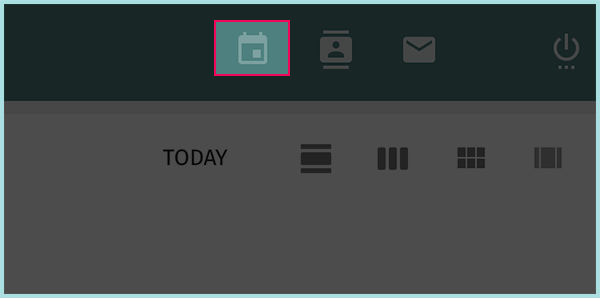
- All available calendars will be visible on the left sidebar. Note that there is a switch button on each one of them. If you switch it you will hide all events and tasks from this calendar.
How to create a new calendar? #
By default, there is only one calendar in your account, called Personal calendar. You can create as many calendars as you want. Follow the next steps to create a new calendar.
How to do it?
- Access your webmail using SOGo mail client and click the calendar icon at the top right corner.
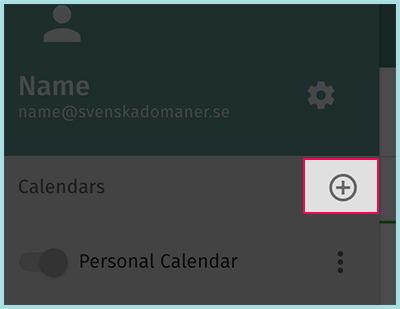
- All available calendars are visible in the left sidebar. Click the plus icon next to ”Calendars” section.
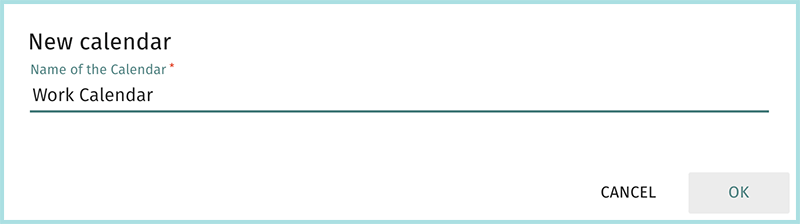
- Type the name of you new calendar (for example ”Work calendar”) and click ”OK” button.
How to share your calendar? #
You can share any of your calendars with everyone or with individual users and set different sharing rights for each one of them.
Share with any authenticated user #
By choosing ”Share with any authenticated user” you actually share your calendar with any groupware accounts under the same domain name. Go to next section to see what are the required steps to access this type of shared calendar.
How to do it?
- Access your webmail using SOGo mail client and click the calendar icon at the top right corner.
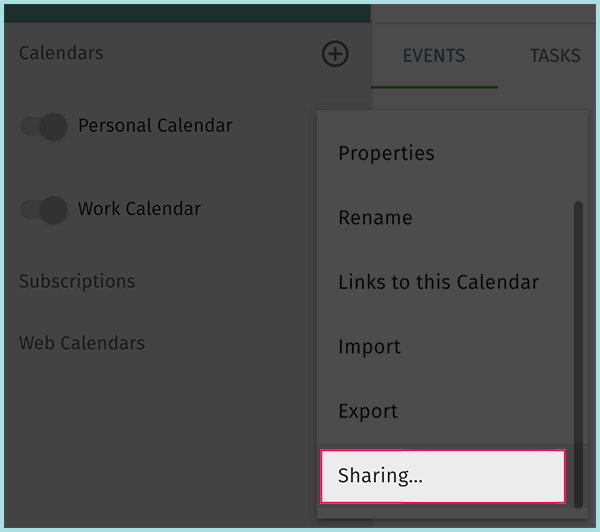
- Click on the 3 dots next to the calendar you want to share and scroll to the bottom in the menu that appears. Select ”Sharing”.
- Set the Access rights for the shared calendar. You can choose whether to give access to any of your event types: Public, Confidential, and/or Private.
You can choose among:
– None: Event type can’t be seen.
– View the Date&Time: View event blocks with no details.
– View All: View all events and details.
– Respond To: Allow the user to respond as you to event requests.
– Modify: Allow the user to modify your events.
Note: There are also check boxes for creating/erasing calendar objects.
Click the ”Save” button when you set all the options.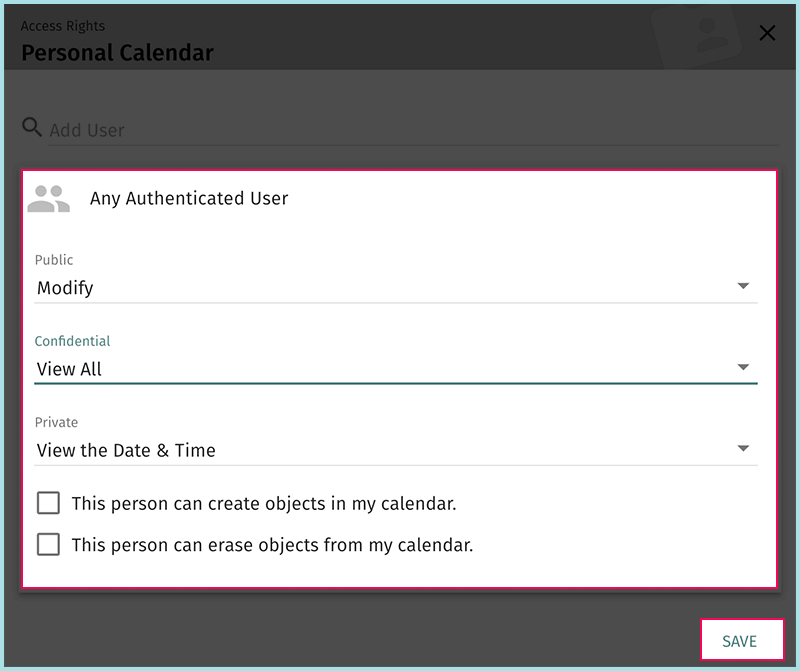
Share with a specific user #
You can add individual users who might have rights beyond the default rights for ”Any Authenticated User”.
How to do it?
- Access your webmail using SOGo mail client and click the calendar icon at the top right corner.
- Click on the 3 dots next to the calendar you want to share and scroll to the bottom in the menu that appears. Select ”Sharing”.
- Start typing a user’s name or email in the search field. Select the user you want from the search results.
- Make sure the checkbox ”Subscribe user” is selected. This will automatically add the calendar to user’s account, otherwise he has to manually add it following the steps in next section.
- Set the Access rights for the shared calendar. You can choose whether to give access to any of your event types: Public, Confidential, and/or Private.
You can choose among:
– None: Event type can’t be seen.
– View the Date&Time: View event blocks with no details.
– View All: View all events and details.
– Respond To: Allow the user to respond as you to event requests.
– Modify: Allow the user to modify your events.
Note: There are also check boxes for creating/erasing calendar objects.
Click the ”Save” button when you set all the options.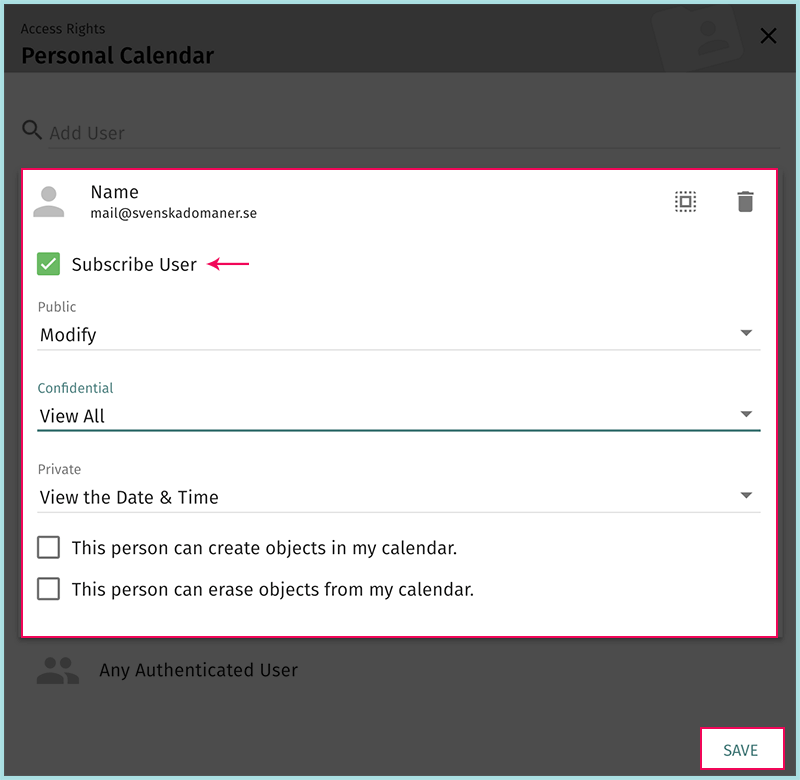
Repeat as needed to add additional users.
How to add a shared calendar? #
Follow the next steps to access a shared calendar.
How to do it?
- Access your webmail using SOGo mail client and click the calendar icon at the top right corner.
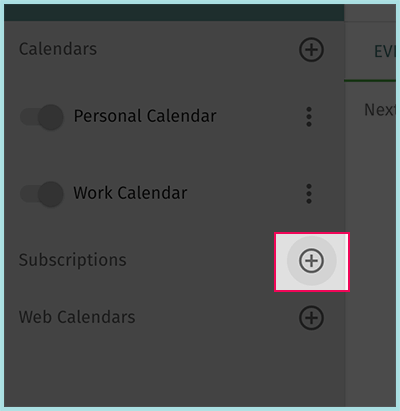
- All available calendars are visible in the left sidebar. Click the plus icon next to ”Subscriptions” section.
- Start typing a user’s name or email in the search field. Select the user you want from the search results. You’ll see a list of his shared calendars. Click the subscribe button next to each calendar you wish.
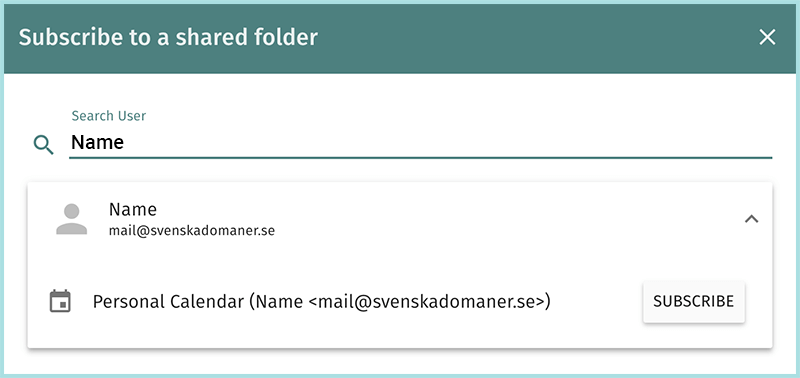
Repeat as needed to add shared calendars from other users.
How to sync a calendar across multiple devices? #
The default calendar (Personal calendar) in your account is automatically synchronized with other devices. For all other calendars, including Shared, you need to explicitly activate visibility through ActiveSync.
How to do it?
- Access your webmail using SOGo mail client and click the calendar icon at the top right corner.
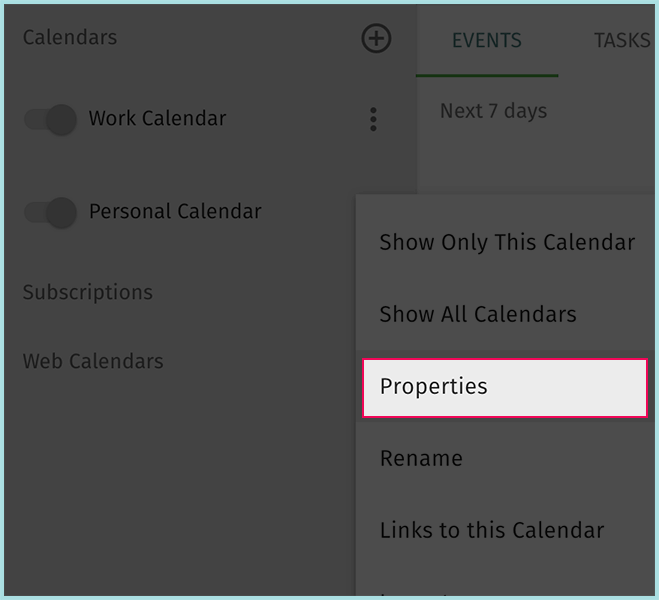
- Click on the 3 dots and select ”Properties”.
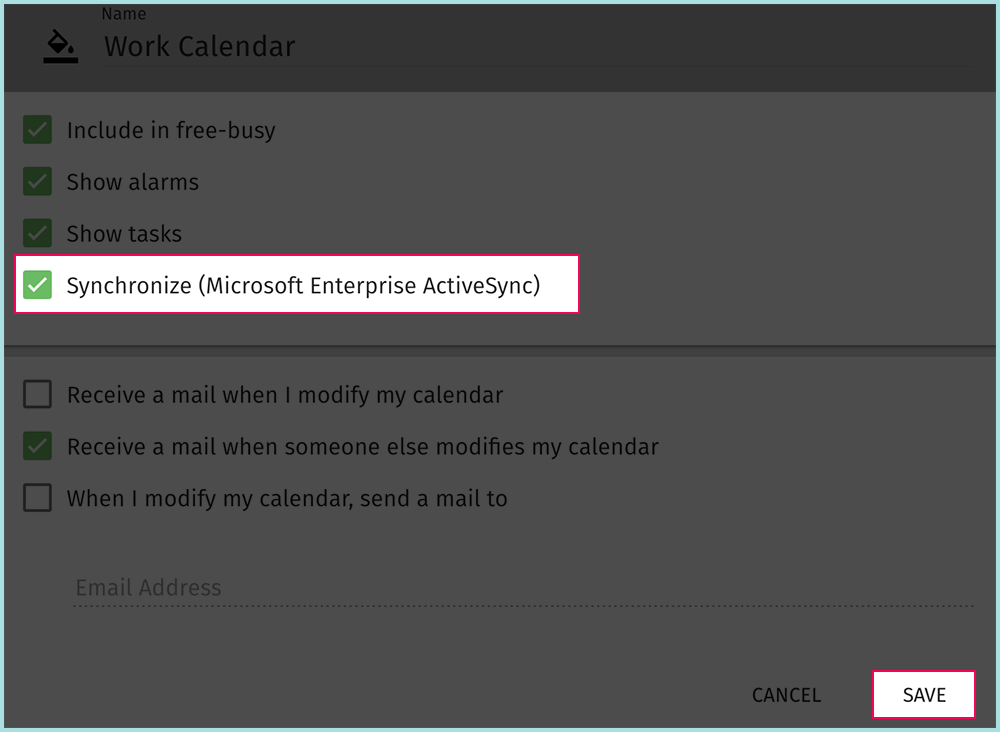
- Make sure that the checkbox ”Synchronize (Microsoft Enterprise ActiveSync)” is selected. Click ”Save” button.
Repeat as needed for any calendar you wish.


